
Ads Tracking reports your lead conversions directly to your Google Ads account, server-to-server. When a lead who arrived from a Google ad reaches a lead status you choose — for example, scheduled or arrived — Second Door uploads a conversion to Google Ads automatically. No tracking pixels or scripts load on your patient-facing pages.
Before you start
- You'll need access to your Google Ads account. Whoever connects it signs in with a Google account that has access to your Google Ads account (or the manager account that oversees it). If an agency runs your ads, they can complete this step — manager accounts are supported.
- Keep auto-tagging enabled in Google Ads. Attribution works through Google's click ID (GCLID), which Google appends to your ad's landing-page URL only when auto-tagging is on. It's on by default — check under Google Ads → Admin → Account settings → Auto-tagging.
- Any staff member signed in to Second Door can complete the setup.
Step 1: Connect your Google Ads account
- In Second Door, go to Settings → Ads Tracking.
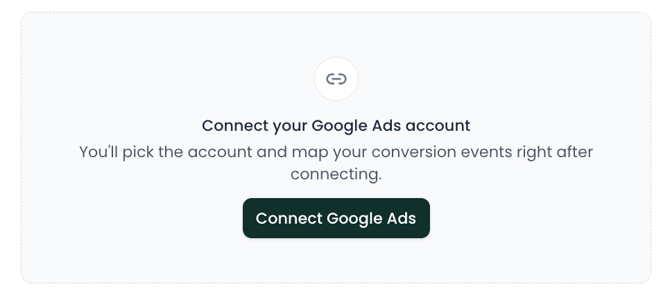
- Click Connect Google Ads.
- Sign in to Google (you may be asked to two-factor) and approve the requested access. Second Door asks for two permissions: one to list your ads accounts and conversion events, and one to upload conversion data.
- You'll be returned to the Ads Tracking page with your account connected.
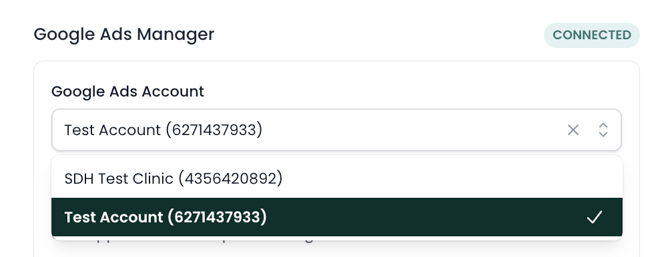
If your Google login has access to more than one ads account, choose the account you want conversions reported to. You can switch accounts later from the same page.
Step 2: Add your conversion events
Conversion events (Google calls them "conversion actions") are what shows up in your Google Ads reporting. On the Ads Tracking page you can:
- Use existing conversion events already defined in your Google Ads account, or
- Create a new one by giving it a name — Second Door creates it in your Google Ads account for you, so you never have to leave the page.
Many practices create one event per funnel stage, for example "Lead created," "Evaluation scheduled," and "Patient arrived."
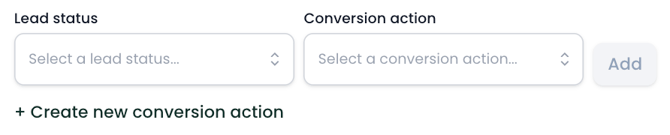
Step 3: Map lead statuses to conversion events
Choose which of your lead statuses report a conversion, and to which event. For example:
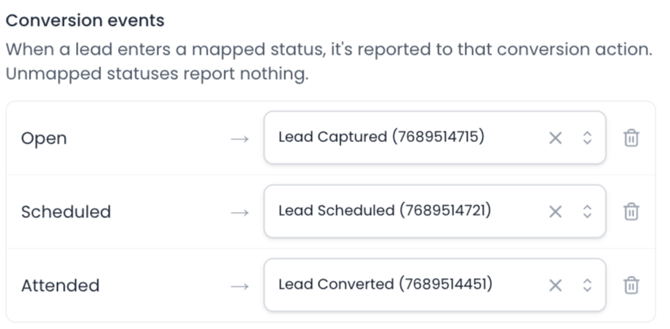
Statuses you leave unmapped never report anything — you're in full control of what counts as a conversion. Click Save when you're done.
How it works from here
- When a patient clicks your Google ad, Google adds a click ID (GCLID) to the landing-page URL. Second Door captures it on signup and stores it with the lead — the same way UTM parameters are captured.
- When that lead enters a mapped status — whether Petey books them, staff drag the card on the leads board, or the status changes any other way — Second Door uploads a conversion to your Google Ads account.
- Moving a lead backward and forward through statuses won't double-count: Google deduplicates repeat reports for the same lead and event.
- Leads that didn't come from a Google ad (no click ID) simply don't report — no errors, no noise.
Conversions can take a few hours to appear in Google Ads reporting after upload.
If your ads don't link directly to your Second Door page
Google appends the click ID to whatever URL your ad points to. If your ad links straight to your Second Door signup page, you're done — it's captured automatically.
If your ad lands on your own website first (a homepage or service page), the click ID needs to be carried onto the link to your Second Door page. Pass it along as the gclid query parameter — exactly like you would other query parameters such as UTMs:
https://members.seconddoor.app/your-signup-page?gclid=Cj0KCQjw...
Verify it's working
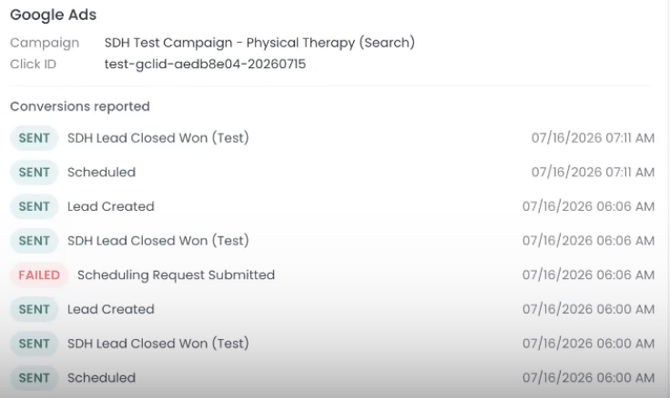
Per lead: open a lead and go to Marketing → Advanced. If the lead came from a Google ad you'll see the connected account, the campaign, the click ID, and every conversion event reported for that lead.
Across your account: on Settings → Ads Tracking, click Show logs to see every conversion Second Door has reported — newest first, filterable by sent or failed.
Troubleshooting
No conversions are showing up. Check, in order:
- The lead actually came from a Google ad — open the lead's Marketing → Advanced card and confirm a click ID is present. If it's missing, confirm auto-tagging is enabled in Google Ads.
- The lead reached a status you've mapped — unmapped statuses don't report.
- The connection is still active on Settings → Ads Tracking.
- You've waited a few hours — Google's reporting isn't instant.
A log entry shows "failed." The log records the reason for every failed upload. If the same failure keeps repeating, contact us at support@seconddoor.app with the lead and timestamp and we'll dig in.
FAQs
Is this HIPAA-friendly? Yes — Ads Tracking through Second Door sends no PHI to third-party ads platforms, a best practice under HIPAA. Conversion data is sent server-to-server and consists of Google's own click ID, the event time, and which conversion event fired — never patient names, contact details, or health information. And because no third-party tracking scripts load on your patient-facing pages, there's nothing collecting patient data in the browser either.
What about Meta, TikTok, or LinkedIn tracking? Google Ads is supported today. If you rely on other ad platforms, contact us at support@seconddoor.app to talk through options.
Can I disconnect? Yes — Disconnect Google Ads on the Ads Tracking page stops conversion reporting immediately. Your data in Google Ads is unaffected.
Who at my practice (or agency) should do the setup? Anyone with a Second Door staff login and Google Ads access. Agencies managing ads through a manager account can connect directly.