
For a Fax Management Workflow guide & FAQ, click here.
Second Door gives you the ability to route fax referrals through the platform. This article covers all fax-related workflows:
-
Manually uploading faxed referrals
-
Automatic fax routing via forwarding
-
How extracted data populates the lead record
-
Where fax documents are stored and accessed
Adding Faxed Referrals Manually
How to Create a Lead from a Fax
-
Click New Lead
-
Select Fax
-
Drag and drop the fax file onto the uploader inside the Referral Information tab of the lead profile
Note: all uploaded fax files appear inside the Referral Information tab of the lead profile, alongside any other referral documentation.
The system will automatically extract:
-
Name
-
Date of birth
-
Phone number
-
Potential patient match
You can select or adjust the match before saving.
Using Automatic Fax Forwarding
What Automatic Forwarding Does
Automatic fax forwarding eliminates manual uploads. Any fax your clinic receives can be instantly routed into Second Door and generate a lead.
How to Enable Forwarding
-
Go to Settings → Locations
-
Copy the unique fax referral forwarding email
-
Paste it into your fax provider’s forwarding settings (e.g., SR Fax)
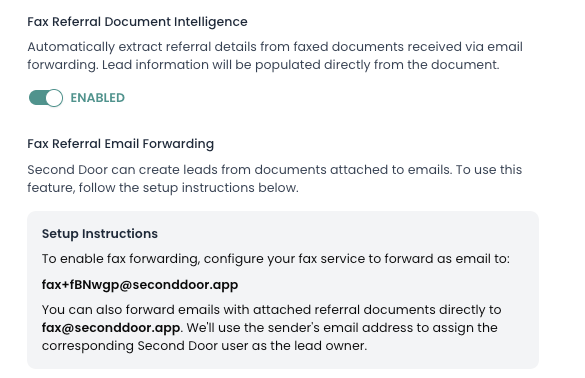
Once configured:
-
Incoming faxes are forwarded to Second Door
-
Leads are created automatically
-
Data is extracted and matched to patients
-
Documents appear inside the Referral Information section on the lead record