
Instead of immediately contacting employers through cold outreach, Opportunity Reviews allow you to share a list of potential companies with your team and ask if anyone has a connection that could facilitate an introduction.
This process helps improve outreach success by prioritizing opportunities where your team already has relationships in the community.
Opportunity Reviews are commonly created from Discover, where you identify companies that may be a good fit for employer partnerships.
Why Opportunity Reviews Matter
Cold outreach to employers can be time-consuming and unpredictable. Opportunity Reviews help your practice:
-
Identify personal or professional connections to employers
-
Coordinate outreach across your team
-
Reduce cold outreach
-
Increase the likelihood of successful introductions
By gathering connections from across your organization, Opportunity Reviews make employer prospecting more collaborative and efficient.
Creating an Opportunity Review
After running a company search in Discover:
-
Select the employers you want to evaluate
-
Click Create Opportunities
-
Choose Create Opportunity Review
-
Name the Opportunity Review
-
Save the review
This creates a shared list of employers that your team can review for potential connections.
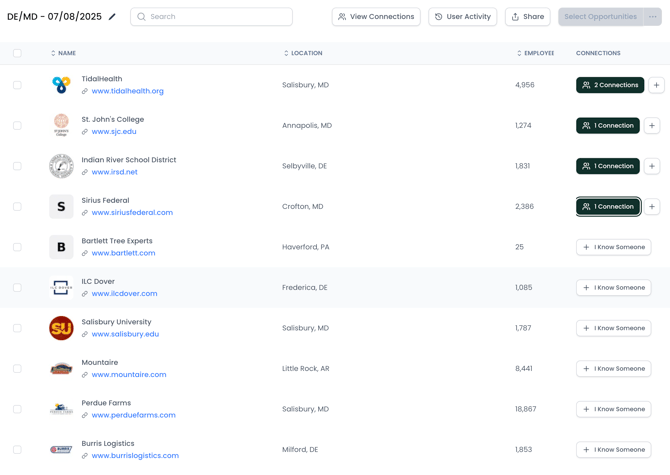
Note: You can also add companies to an existing Opportunity Review if you are building on a previous list.
Sharing Opportunity Reviews
Opportunity Reviews can be shared with members of your team to gather input.
When you enter email addresses and click Share, the system sends an email invitation prompting recipients to review the opportunities and identify any connections they may have.
Recipients can access the review without logging into the platform and provide connection information directly through the shared view. They will be asked to enter their name and email address before viewing the opportunities. This allows the system to track who is reviewing the opportunities and contributing connections.
Reviewing Opportunities
Inside an Opportunity Review, you will see a list of employers that were included in the review. For each employer, you can view:
-
Company name
-
Location
-
Existing connections (if any)
-
Notes or additional context
If someone on your team knows a contact at one of these companies, they can add that information directly within the Opportunity Review by clicking I Know Someone.
Adding Connections
When reviewing an opportunity, users can indicate that they know someone at the company by clicking I Know Someone.
They will then be prompted to enter important contact information:
-
Contact name
-
Job title
-
How they know the person
-
Email address
-
Phone number
This information is saved to the opportunity and helps your team determine the best path for an introduction. Connections can also be added directly within the Second Door interface if you already know someone associated with the company using the same workflow.
Reviewing Connections
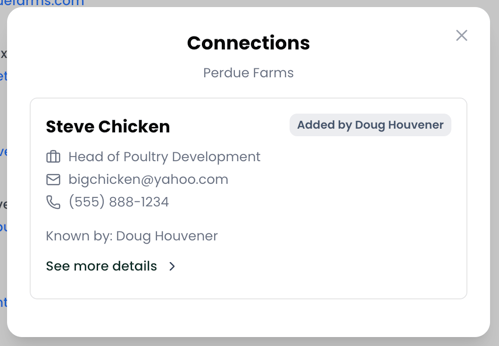
Your Opportunity Reviews will continue to update as new information is added by your team. When new connections are added, the Connections column will update to reflect how many connections have been added per employer. Clicking on the Connections button will open a detailed view for the Employer Opportunity where you can review what was submitted.
Tracking Activity
Opportunity Reviews provide visibility into how your team interacts with the list.
When you click the User Activity button at the top of an Opportunity Review, you can see:
-
Who has reviewed it
-
How many connections they've added
- Key dates and statuses around their interaction with the Review
This helps you understand whether the review has been seen and whether connections have been identified.
Converting Opportunities
When a company in an Opportunity Review looks promising, you can convert it into a full Employer Opportunity.
To do this:
-
Select the checkbox next to the employer
-
Click Accept as Opportunity
The system will create a new Employer Opportunity and enrich the company record using ZoomInfo data.
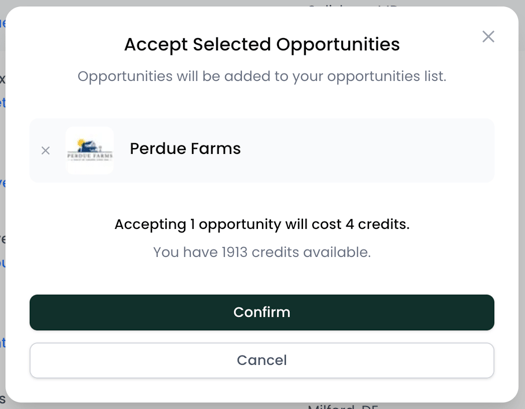
Once converted, the opportunity can be managed like any other Employer Opportunity, including adding contacts, tracking status, and recording notes.
Best Practices
To get the most value from Opportunity Reviews:
-
Share reviews with team members who are active in the community
-
Encourage staff to add connections even if they are not the decision maker
-
Review connection notes before beginning outreach
-
Convert promising companies into Employer Opportunities for follow-up
Using Opportunity Reviews helps your team focus on relationship-driven outreach, improving the chances of successfully establishing employer partnerships.