
⚠️ This is a deep-dive of Step 8 in the Petey setup guide. Make sure you start with the Petey setup guide - not here!
What changes when you add Petey
One thing: where new-patient calls go. Instead of ringing your front desk or new patient team directly, the "new patient" option in your phone tree routes to Petey's number. Petey answers, collects intake information, and books appointments 24/7. If the caller needs to speak with a person, Petey transfers them to your new patient team's direct line.
Everything else in your phone tree stays exactly the same. Existing-patient calls, billing options, location menus — none of that changes.
The numbers in your phone tree
Your phone tree with Petey involves up to four numbers. Each one appears in a different color in the diagrams below.
-
Green — Main clinic number. The number patients call. This is the entry point to your phone tree.
-
Purple — Petey number. A dedicated number assigned to your practice, found in Second Door > Petey Settings. Your phone tree's new-patient option points here.
-
Gold — New patient team line. The direct line your new patient team uses today. This becomes Petey's transfer destination — where Petey sends callers who need to speak with a person.
-
Blue — Existing patient line. Your front desk or location-specific lines. This path doesn't change with Petey.
Your current phone tree
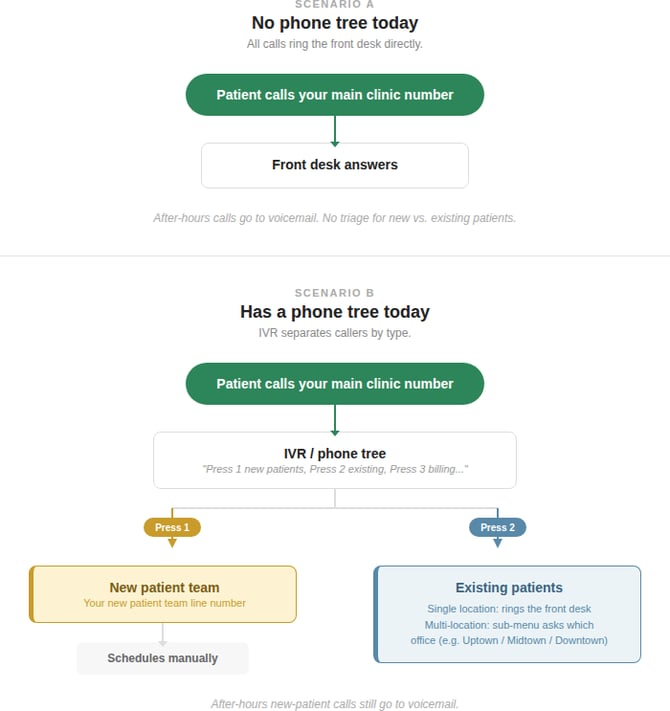
Most practices fall into one of two setups today.
-
Scenario A has no phone tree — all calls ring the front desk directly, and after-hours calls go to voicemail.
-
Scenario B has a phone tree that separates new-patient and existing-patient calls.
If your current phone tree looks different, that's not a problem. These visual maps can make conversations easier, and you can use them as inspiration for mapping out your current phone tree to help facilitate the change management conversation with your team.
Your phone tree with Petey
With Petey, the new-patient path changes. Instead of ringing your new patient team directly, the "Press 1" option routes to Petey. Petey books when it can and transfers to your new patient team when the caller needs a person. The existing-patient path stays exactly the same.
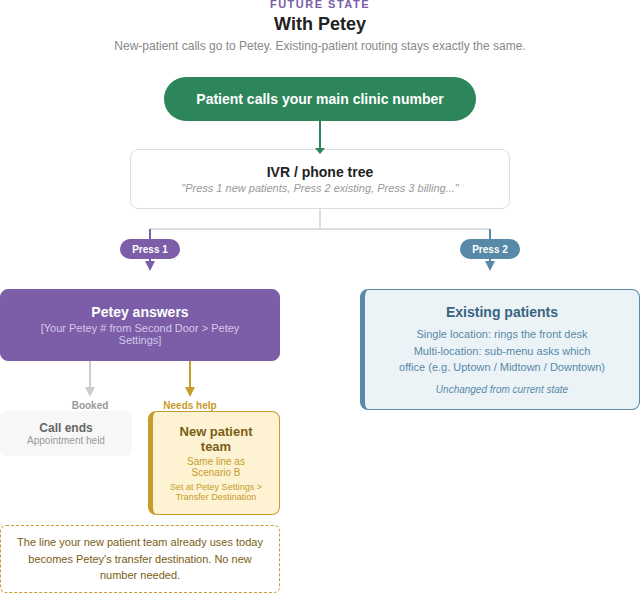
✅ The direct number your new patient team already uses today (gold) becomes Petey's transfer destination. No new number is needed. Put this number in your Second Door account at AI Agents > Petey Settings > Transfer Destination.
🚫 Don't set the transfer destination to your main clinic number. If Petey transfers a caller to your main clinic number (green), they hit the phone tree again, press "new patient," and land right back with Petey — an infinite loop. The transfer destination must be a direct line to your new patient team (gold) that bypasses the phone tree entirely.
What to tell your phone system admin
You can find Petey's phone number in your Second Door account at AI Agents > Petey. Your phone system admin (Weave, RingCentral, etc.) handles the routing changes. Give them the Petey phone number and these instructions:
- Update your phone tree to separate new patients from existing patients, if it doesn't already. A simple, clear greeting works best: "Thank you for calling [Practice Name]. If you're a new patient, press 1. For all other calls, press 2."
- Keep existing patient routing exactly as it is today.
- Route the new-patient option (press 1) to Petey's phone number (recommended).
- Alternatively, you can have this option ring your main line but re-route to Petey if no one answers after a number of rings or seconds.
- Keep the existing-patient option (press 2) routing to your front desk as it does now.
- See this article for more information
Phone system vendor resources
Your phone tree is configured in your phone system's admin portal, not in Second Door. Each vendor uses different terminology. The links below go to each vendor's help center for phone tree and auto attendant setup.
- 8x8 — Auto Attendant setup
- RingCentral — IVR menu setup
- GoTo Connect — Dial plan setup
- Weave — Phone tree setup
- Vonage — Virtual Receptionist setup
- Nextiva — Auto Attendant setup
- Dialpad — IVR setup
- Zoom Phone — Auto Receptionist setup
- Intermedia — Auto Attendant setup
- Ooma — Virtual Receptionist setup
If you need hands-on help configuring your phone tree, reach out to your phone system vendor's support team directly.
All set? Head back to the Petey setup guide to continue with step 9.