
Petey is Second Door's front desk AI agent for outpatient physical therapy. Built specifically for PT practices, Petey answers patient inquiries, gathers intake information, checks eligibility, schedules appointments, and automates front desk workflows across phone, text, and digital channels. Through deep integration with Second Door's platform and its configurable scheduling rules, Petey helps practices improve patient access and expand front desk capacity—so staff can focus on patients, not phone tag—while delivering a faster, more consistent patient experience.
Your existing patient workflow doesn't change. Existing patients are routed to your front desk exactly as they are today. Petey handles new patients only.
How Petey Handles a New Patient Call
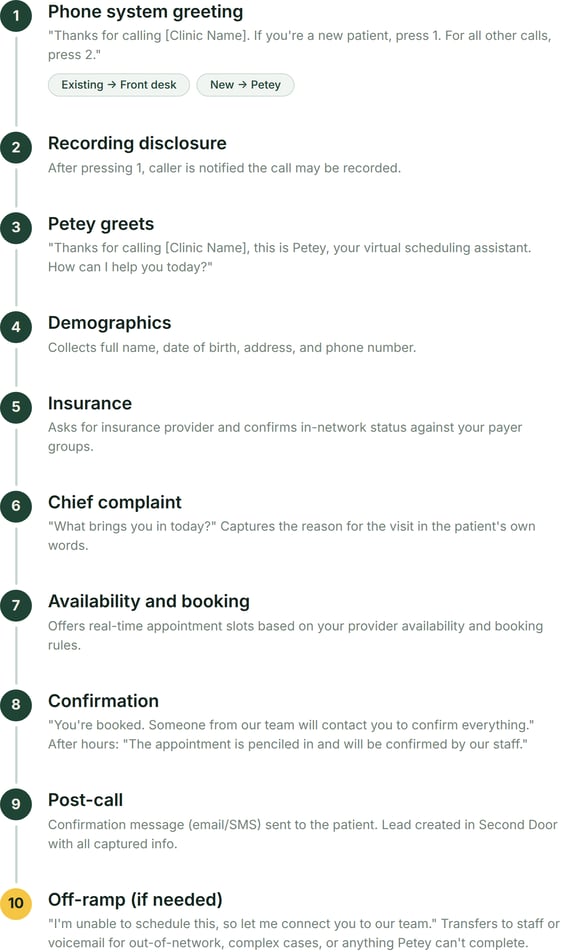
When a new patient reaches Petey, here's what happens on the call:
- Collects patient information. Petey greets the caller and gathers their demographics and contact information.
- Checks insurance. Petey verifies the caller's insurance against your payer groups to confirm they're in-network.
- Books the visit. Petey finds the soonest available time at the most convenient location, based on your booking rules and your providers' real-time availability, and confirms the appointment details with the caller.
- Creates a lead. A lead appears on your Second Door dashboard with the patient's information, a recording and transcript of the call, and the booked appointment time.
- Routes back to you if needed. If Petey can't complete the booking, the caller is transferred to your voicemail or a direct line you specify. Common reasons no available slots matching the patient's needs, or the patient requesting to speak with a person. Your team follows up from there.
How callers get to Petey
Your phone tree is what connects new patients to Petey. Most practices use a simple prompt ("press 1 for new patient, press 2 for existing patient") and route the new patient option to Petey's phone number. There are two ways to set this up:
- Route all new patient calls directly to Petey (recommended). Every caller who selects new patient goes straight to Petey. This is the approach that drives the most value: every new patient call is answered instantly, 24/7, with no missed calls and no voicemail. If Petey needs to transfer a caller to your team, you'll need a direct phone number that rings your front desk (not your main number or phone tree) so the call doesn't loop back to Petey.
- Let the front desk answer first, with Petey as backup. When someone selects new patient, the call rings your front desk for a set number of seconds. If no one answers, the call automatically forwards to Petey. This keeps your team as the first point of contact while Petey catches everything they miss. You'll need a direct-to-voicemail number for Petey to transfer callers when it can't complete a booking.
Either way, existing patient calls are routed to your front desk exactly as they are today. Nothing changes for existing patients.
Configure or re-configure Petey
If your team isn't set up with Petey yet, or needs to update a setting, click here for the Petey setup article.Text Your Fax or Web Leads with Petey
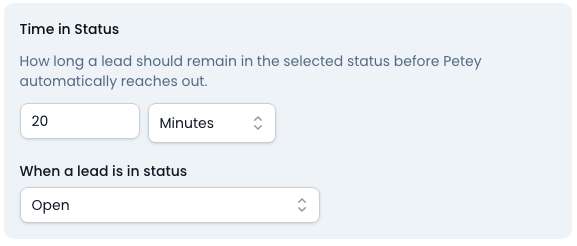
Petey can automatically reach out via text to new fax or web leads after a designated amount of time to expedite booking. The conversation flow via text mimics the one it would use verbally when a patient calls (see above).
How Texting with Petey Works
When enabled, Petey will automatically text eligible leads on your behalf. A lead will be engaged when all of the following are true:
- The lead has been in the selected status for at least the configured amount of time.
- The lead has a first name, date of birth, and phone number on file.
- The lead is 18 years or older.
- The lead does not already have an active conversation in Second Door.
- The lead does not already have a requested, scheduled, or attended eval appointment.
- It is currently between 8:00 AM and 8:00 PM in the lead's local time, in line with federal TCPA quiet-hours guidance.
- After Petey begins an SMS conversation with the lead, if the lead is currently in Open status, the lead status will automatically update to your first "In Progress" status.
Note: Petey must be configured for SMS before this automation can engage leads. You can set this up under Petey Settings on the SMS tab.
Your Daily Routine with Petey
Petey-booked appointments - whether via text or phone - appear on your Second Door dashboard as leads. Your daily routine for working these leads follows the same process as any other lead source. (See Second Door Workflow Guide: Working Leads Daily for the full routine.) The key steps specific to Petey:
- Check for Petey leads with status "Scheduled." These are patients Petey booked since your last check. Each lead card includes the patient's demographics, insurance information, and the booked time. You can filter your dashboard with 1-click to easily see only Petey-related events:

- Confirm the appointment in your EMR. A Petey booking is a hold based on real-time availability. It isn't yet an appointment in your EMR. Create the matching appointment in your EMR using the information on the lead card.
- Contact the patient to confirm. Call the patient to confirm the appointment and collect any remaining intake items: referral documents, insurance cards, consent forms.
- Check for escalations. These are leads Petey couldn't complete: out-of-network insurance, no available slots, or the patient requesting a live person. Your team follows up on these directly.
Best Practices
- Check the lead card before every outreach. Before calling or texting any patient, open their lead card on the dashboard. Check their current status, review logged calls and notes, and look for any SMS conversations. A patient you planned to call may have already called back and booked through Petey, or another team member may have already reached them. Taking a moment to check prevents duplicate outreach and a poor patient experience.
- Advance the lead status after every interaction. After logging a call, sending a text, booking an appointment, or completing any action on a lead, update the lead status to the appropriate stage before moving on.
- Set your minimum notice time. Petey won't book appointments sooner than your minimum notice time, giving your team time to verify insurance, send intake paperwork, and contact the patient before the visit. You can configure this under Settings > Scheduling Settings. A common starting point is 14 to 36 hours, depending on how much lead time your team needs.
- Confirm Petey bookings early each morning. Patients expect a confirmation. The sooner your team reviews and confirms Petey-booked appointments in your EMR, the better the patient experience.
- Assign Petey lead review to a specific person or team. Just like any other lead source, Petey leads convert best when someone owns the follow-up. Don't let them sit.
- Flag patterns to your Second Door team. If you notice recurring issues (a common insurance carrier Petey doesn't recognize, a provider showing as unavailable, calls being transferred that should have been completed), let your Second Door team know. Most are quick configuration fixes.
- Keep your provider availability and payer groups current. Petey books based on the availability and insurance settings in your account. When a provider's schedule changes or you add a new in-network payer, update your Second Door settings so Petey stays accurate.
Your EMR and Second Door
Your EMR remains your source of truth for scheduling, documentation, and clinical care. Nothing about how you use your EMR changes.
When Petey books a patient, it creates a hold based on your providers' real-time availability. This hold is not yet an appointment in your EMR. Your team confirms it by creating the matching appointment in your EMR, the same way they'd schedule any other new patient. Second Door tracks the journey from "a new patient called" to "they're on the schedule." Your EMR handles everything after that.
Common Questions
-
Does Petey replace my front desk?
No. Petey handles new patient calls only. Existing patients are routed to your front desk exactly as they are today. Your team still confirms every Petey booking in your EMR and handles pre-visit preparation. Petey is an additional team member, not a replacement.
-
What happens when Petey can't complete a call?
Petey transfers the caller to your voicemail or a direct line you specify. Common reasons include out-of-network insurance, no available slots, or the patient asking to speak with a person. Your team picks it up on the next business day.
-
How does Petey handle insurance?
Petey asks the caller for their insurance information and checks it against your payer groups. If they're in-network, Petey proceeds with booking. If they're out-of-network or the insurance can't be verified, Petey lets the caller know and transfers them to your team.
-
Will Petey use our existing phone number?
No. Petey gets its own phone number, which your phone system routes to through your phone tree. Your main practice number doesn't change, and your existing patients won't notice any difference.
-
Can Petey handle calls in Spanish?
Yes. If your phone tree includes a language selection, Petey can answer in Spanish. Your phone system routes callers to the appropriate language version based on their selection.
-
What if an existing patient accidentally reaches Petey?
Petey recognizes when a caller isn't a new patient and transfers them to your front desk or concierge line. The transfer rules are configurable during setup, so callers always end up in the right place.
-
Can Petey figure out which clinic to route a call back to?
Petey collects the caller's home address and geolocates the nearest clinic. Transfers are then routed based on that clinic designation.
-
Can Petey also send text messages?
Yes. When SMS is enabled, you can set up automations — for example, if a lead sits in "new" status for more than 20 minutes, Petey texts the patient to try to get them scheduled. This is especially useful for after-hours and weekend leads.
-
Can we see Petey's conversations with patients?
Yes. All SMS conversations appear in the Conversations pane in Second Door. Call recordings and summaries are also available on each lead card.
-
Does Petey have access to provider availability?
Yes. Second Door pulls real-time scheduling data from your EMR, including provider times and open slots. Petey uses this to offer available appointment times.
-
Can we turn on Petey for only some clinics?
Yes. Since Petey is just a phone number in your call tree, you control which locations route to it. You can start with one clinic and expand as you get comfortable.
-
Can scheduling rules be different from clinic to clinic?
Yes. Booking rules can be scoped to individual locations, specific providers, services, or groups — including payer-group-based rules.
-
Can we run a report on what Petey scheduled?
Yes. In the lead dashboard, filter by "managed by Petey" and "scheduled" status, then filter by date. You can come in Monday morning and review everything Petey booked over the weekend.
-
Will Petey double-book a slot it already filled?
No. Petey tracks its own bookings internally and won't double-book a slot, even before the data syncs back to your EMR.
-
Can we change Petey's voice?
Yes. You can change both the voice agent's name and the voice itself. Multiple voice options are available.
-
If someone asks Petey whether it's an AI, what does it say?
Petey confirms it's an AI assistant, explains it's there to help, and asks if the caller would like to continue. If they want to speak with a person, Petey transfers the call.
-
Can Petey get specific about which insurance is accepted?
Yes. You create payer groups in Second Door and mark them in- or out-of-network. Configure these in Settings > Groups.
-
How does Petey choose which location to book?
Petey uses the patient's address to recommend the closest location. If the patient prefers a different location — because they work nearby, want a shorter wait, or need a specific service — Petey offers alternatives and books wherever the patient chooses. It doesn't matter which office number the patient dialed. Petey always starts from the patient's address and confirms the location with the caller before booking.
-
What does it mean when a lead shows "Sync failed"?
Occasionally, the appointment request to your EMR may not go through on the first attempt. When this happens, the lead card shows a sync failure notice with a retry button. Click retry to resend the appointment to your EMR. Your team will catch these during the normal daily lead review. If the issue persists, contact your Second Door team with the lead URL so they can investigate.