
When your appended URL is then visited, it allows analytics software to track information, such as how visitors are coming to your site and if they're interacting with any content associated with a campaign. The addition of the UTM parameter doesn't change the content of the post. Rather, it allows for analytics to interpret the origin and basic engagement information about the visitor.
Let's take a quick look at how each one of these five possible UTM tags should be used.
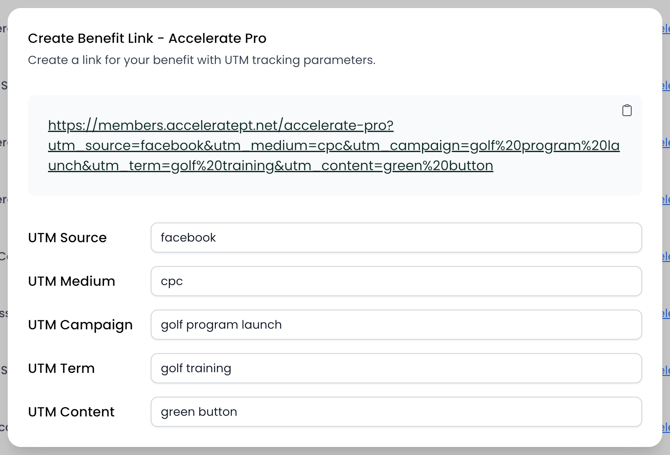
- Source: Used to show which site the visitors are coming from (IE: Facebook, Google).
- Medium: Used to show which marketing channels are bringing the visitor to your site. Examples include, but aren't limited to, email, social, or cost-per-click.
- Campaign: Used to identify which campaign the promotion is associated with.
- Term: Used to manually identify paid keywords you're targeting with your campaign.
- Content: Used to identify the exact element on your ad or promotion that was clicked. This is often used for optimization purposes.
Adding UTMs to your Sites in Second Door
To add UTMs to a link, head to Digital Front Door > Sites. On the right hand side, you'll see the Create Link button. Once you click that, you'll be able to add UTMs to that Site link and easily copy the full link that's generated above. Use this link in your campaigns to track performance for that specific initiative/campaign.
Where UTM Values Are Reported
In Leads Reporting, you'll see Top Sources as a metric on the Leaderboard. UTM values also show up on the Lead Profile under the Marketing Information section. For more advanced tracking, we recommend adding your Google Analytics or Google Tag Manager ID in Settings > Integrations > Google Tools.