
Lead Card
The first thing you'll see on your lead dashboard are lead cards. These give you an at-a-glance summary of your lead's information:
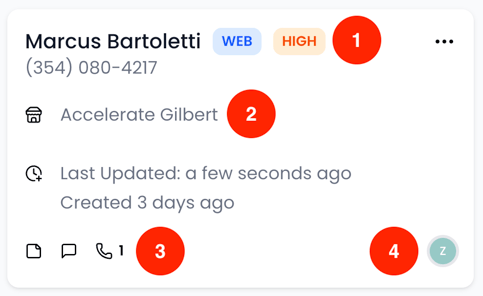
Here, you can quickly see:
- Where a lead came from (Web, Phone, Fax, In-Person, EMR)
- The lead's preferred location
- Quick summary of calls, notes, and SMS messages related to the lead
- Who the lead is assigned to
Lead Profile
From the card, you can click on a lead, and the Edit Lead drawer opens. This is where you can further review and update everything related to that patient.
Top Section - Key Lead Details
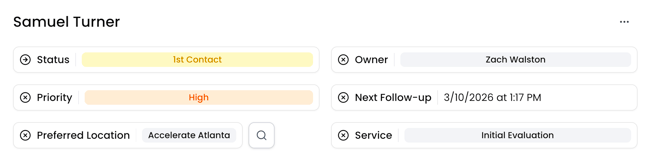
In the top section of the lead profile, you can:
-
Assign or change the lead owner
-
Set a priority
-
Set a next follow-up date
-
Choose the preferred clinic location
-
Choose the correct service line
Patient Matching
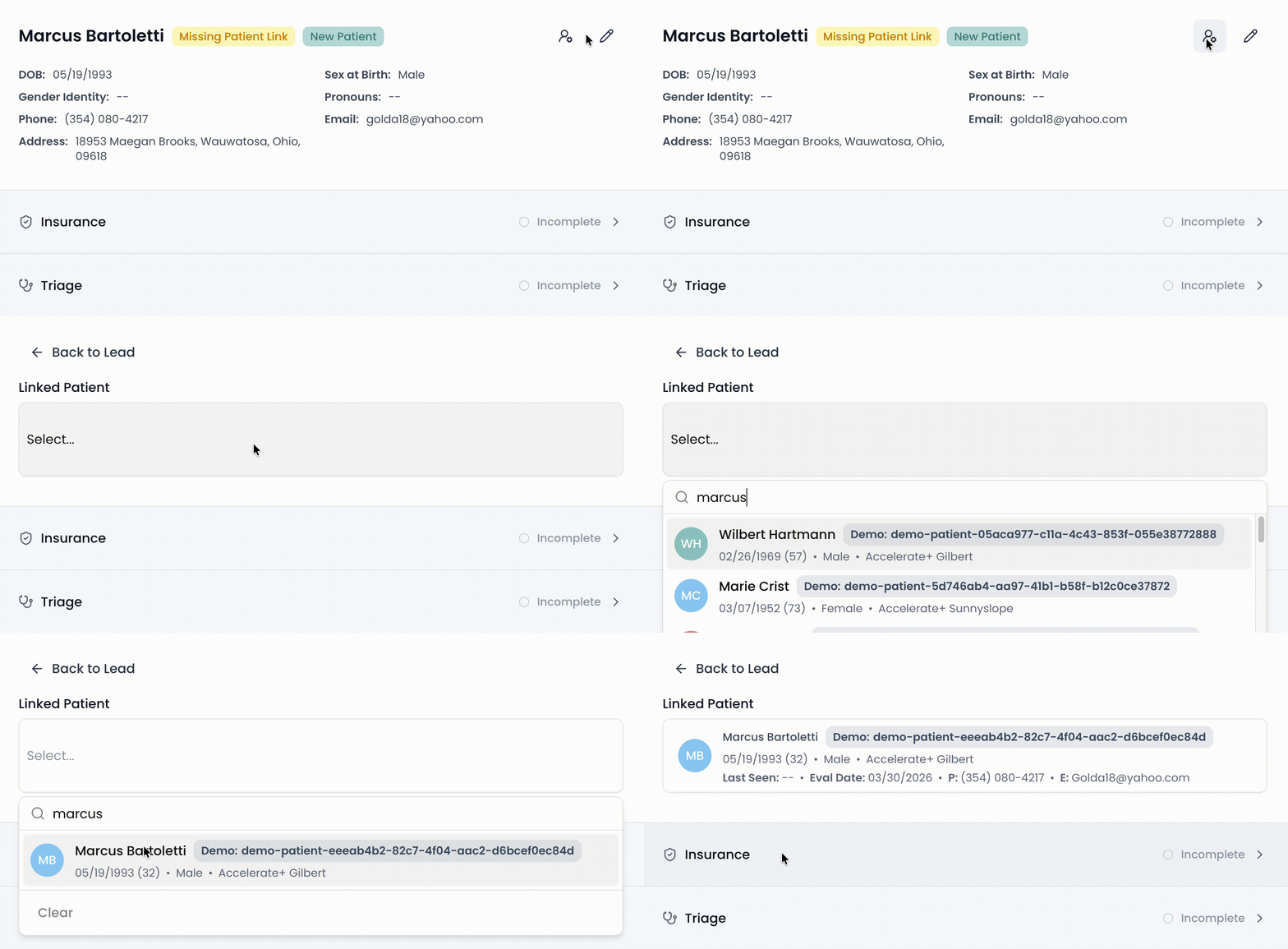
Our system will automatically suggest a patient match based on name, DOB, or contact details using the EMR integration. If a patient is not matched, you can click the patient match icon to search for a match.
Updating Identity & Contact Info
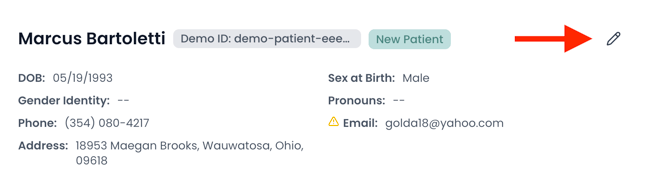
Use the pencil icon to edit any contact details.
Information Sections
Key information about your lead/patient is organized so it's easy to find and update:
Insurance Information: Any insurance details the lead provided (or that your team adds).
Intake/Triage Information: Answers to any questions posed through your digital front door or manually collected by your team.
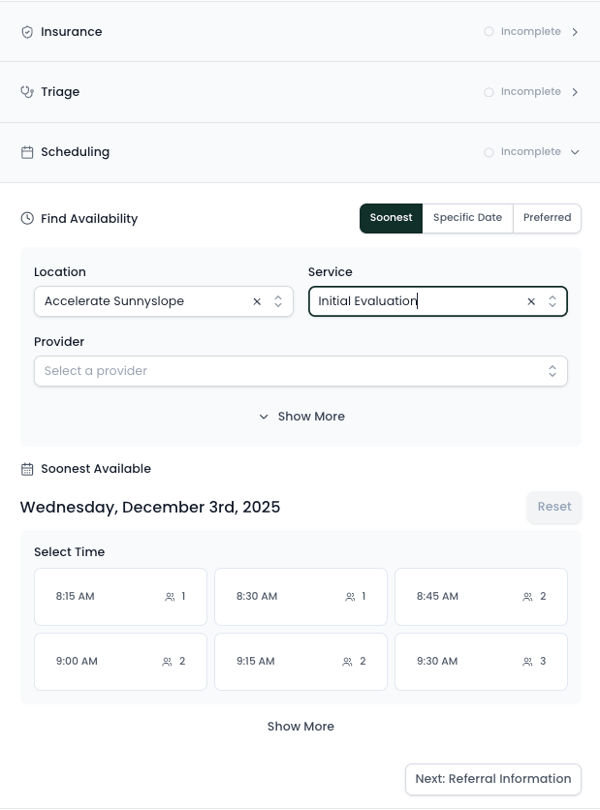
Scheduling Information: Appointment preferences, scheduling attempts, and confirmed visit details. If you're using self-scheduling, you can schedule appointments directly here.
Referral Information: A dedicated space to upload referral documents, physician scripts, or faxed attachments.
Marketing Information: Track how the patient heard about your clinic (review the article on UTM parameters for more information on how to manage this).
Communication Panel
The right-hand panel includes:
This is where all communication is captured for your team.